GPLMart Private Download Test
Original price was: $39.23.$2.43Current price is: $2.43.

+91 7607404628
📌 GPL v2 Licensed — Enjoy lifetime access with unlimited domain usage. Automatic dashboard updates are provided for 1 domain for 1 year through the The GPL Mart Updater, with the option to renew update access annually.
📌 GPL v2 Licensed — Enjoy lifetime access with unlimited domain usage. Automatic dashboard updates are provided for 1 domain for 1 year through the The GPL Mart Updater, with the option to renew update access annually.
Explore the latest releases and updates.
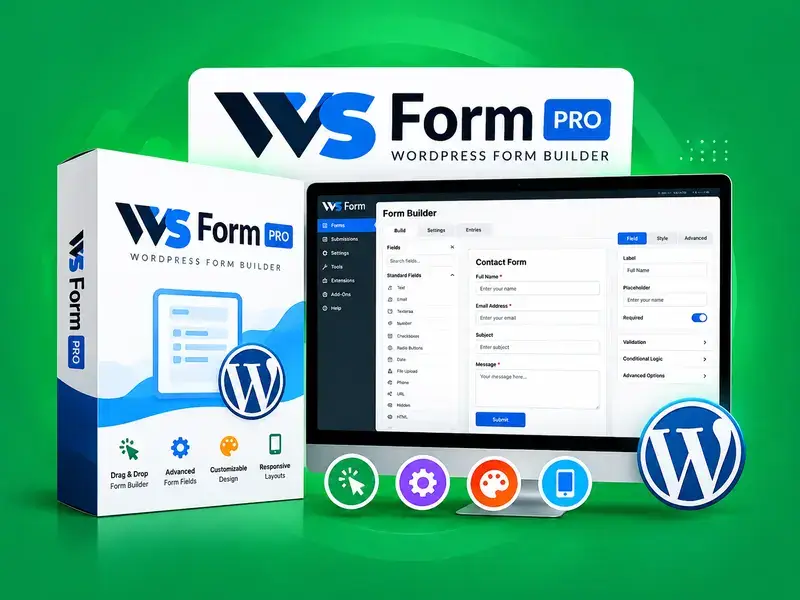
WS Form PRO is a powerful WordPress form builder designed to help you create advanced, responsive, and user-friendly forms for your website. It provides flexible form-building tools, customizable fields, and advanced configuration options to support a wide range of form-building requirements.
Whether you need contact forms, registration forms, lead generation forms, or other custom forms, WS Form PRO offers a versatile solution for building forms that fit your website’s needs.
Key Features
Advanced form-building capabilities
Customizable form fields and layouts
Responsive forms for desktop, tablet, and mobile devices
Flexible form styling and customization options
Support for a wide range of form-building use cases
Integration options for extending form functionality
Custom PHP-based product field support, where configured
A flexible interface for managing and configuring forms
Installation Guide
Follow these steps to install and configure WS Form PRO on your WordPress website.
Step 1: Download the Plugin
Download the WS Form PRO plugin ZIP file from your authorized source and save it to your computer.
Step 2: Install the Plugin
Log in to your WordPress dashboard.
Navigate to Plugins → Add New Plugin.
Click Upload Plugin.
Select the WS Form PRO ZIP file.
Click Install Now.
Step 3: Activate the Plugin
After installation is complete, click Activate Plugin to enable WS Form PRO on your website.
Step 4: Configure the Plugin
Open the WS Form PRO menu in your WordPress dashboard. Review the available settings and configure the plugin according to your website’s requirements.
Step 5: Create a Form
Create a new form and add the fields you need. Customize the form layout, labels, validation, and styling as required.
Step 6: Configure the Custom PHP Product Field
If your installation includes a custom product field developed using PHP, ensure that the corresponding custom code is installed and configured correctly.
Verify that the custom field is registered with the appropriate WordPress or WS Form hooks.
Confirm that the field appears in the intended form-building interface.
Configure the field’s product-related settings and output according to your implementation.
Test the field on the front end to ensure that it displays and behaves as expected.
Important: The custom PHP field is an additional customization and may not be part of the standard WS Form PRO plugin. Its functionality depends on the specific code and integration used on your website.
Step 7: Test Your Form
Preview the form, test all fields, submit sample entries, and verify that the form behaves correctly on desktop and mobile devices.
What is WS Form PRO, and what does it do?
WS Form PRO is a premium WordPress form builder that helps you create advanced, customizable forms for contact, registration, lead generation, and other website requirements.
How do I install WS Form PRO?
Download the plugin ZIP file, navigate to Plugins → Add New Plugin → Upload Plugin in your WordPress dashboard, install the plugin, and activate it.
Can I create custom forms with WS Form PRO?
Yes, WS Form PRO provides flexible form-building tools to create forms with customized fields, layouts, validation rules, and styling options.
Does WS Form PRO support responsive forms?
Yes, you can configure forms for desktop, tablet, and mobile devices to provide a consistent user experience across different screen sizes.
Can I add custom fields using PHP?
Yes, you can extend form functionality using custom PHP code when the appropriate hooks and integration points are available.
Is the custom product field included by default?
Not necessarily. A product field developed separately using PHP is a custom extension and may not be included in the standard WS Form PRO plugin.
What should I do if a custom field is not displaying?
Check that the PHP code is active, the field is registered correctly, and the required hooks are configured properly. Also, review any PHP errors or compatibility issues.
Can I customize the appearance of my forms?
Yes, WS Form PRO supports form customization through available layout and styling options. You can also use custom CSS for additional design adjustments.
Why is my form not submitting?
Check required fields, validation settings, server configuration, security rules, and any custom code that may interfere with form submission.
Can I use WS Form PRO with WooCommerce?
WooCommerce integration depends on the specific functionality required, available integrations, and any additional customization needed for your website.
How can I troubleshoot compatibility issues?
Update compatible plugins, check error logs, and test custom code in a staging environment to identify potential conflicts before applying changes to your live website.
Should I back up my website before updating WS Form PRO?
Yes, creating a complete website backup before updating plugins or modifying PHP code is recommended to help protect your website and data.
Get unrestricted access to every single theme, plugin, and template on the network. Includes this item.